Microsoft Entra (formerly Azure Active Directory) SAML integration guide
This integration guide shows how to set up Microsoft Entra as a SAML single sign on provider for your Redis Cloud account.
| Redis Cloud |
|---|
This guide shows how to configure Microsoft Entra (formerly Azure Active Directory) as a SAML single sign-on identity provider (IdP) for your Redis Cloud account.
To learn more about Redis Cloud support for SAML, see SAML single sign on.
Before completing this guide, you must verify ownership of any domains you want to associate with your SAML setup.
Step 1: Set up your identity provider (IdP)
To create the Microsoft Entra SAML Toolkit integration application:
-
Sign in to your Microsoft Azure account.
-
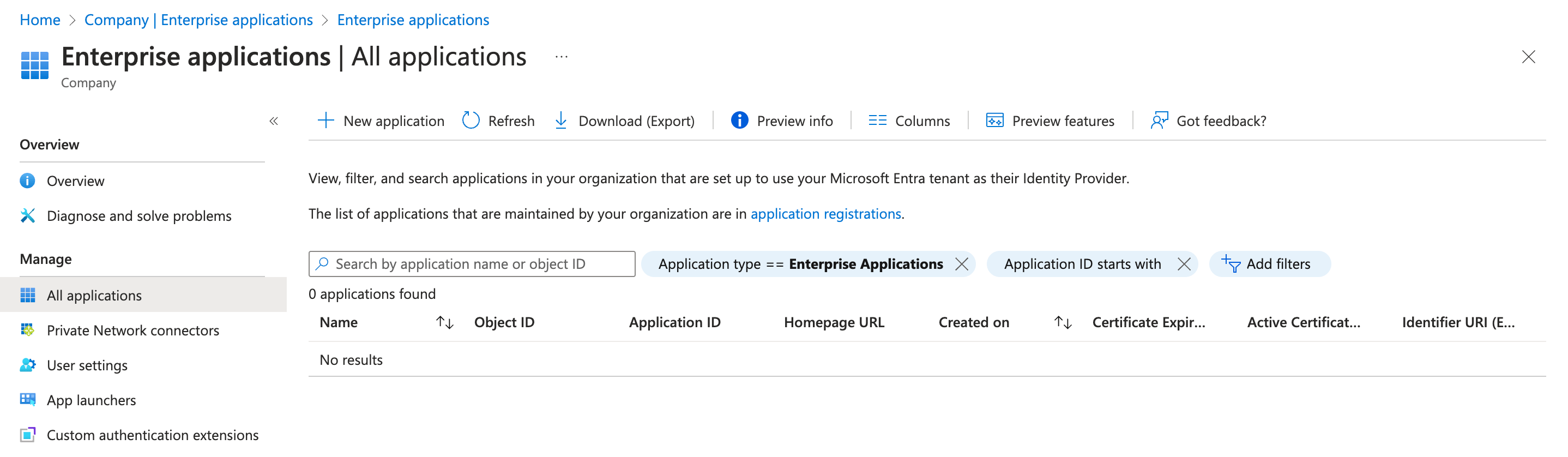
From the main menu, select Microsoft Entra ID > Enterprise Applications. Select New application to add a new application.
-
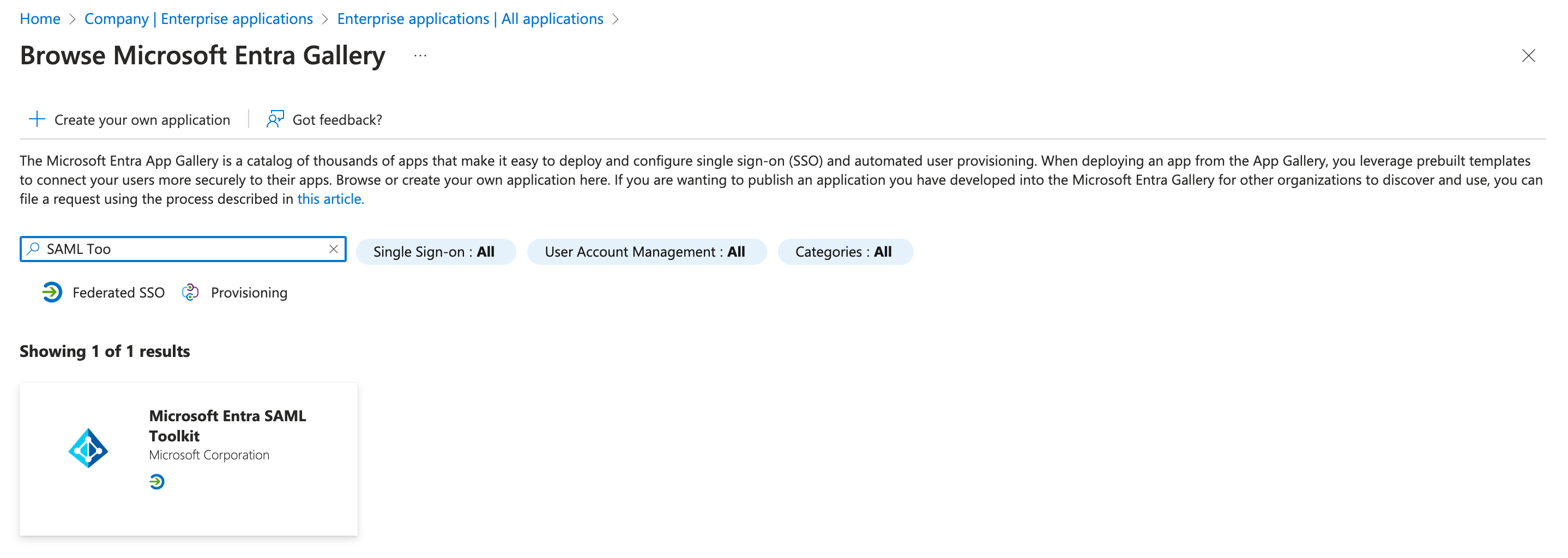
Select Microsoft Entra SAML Toolkit from the list of apps.
-
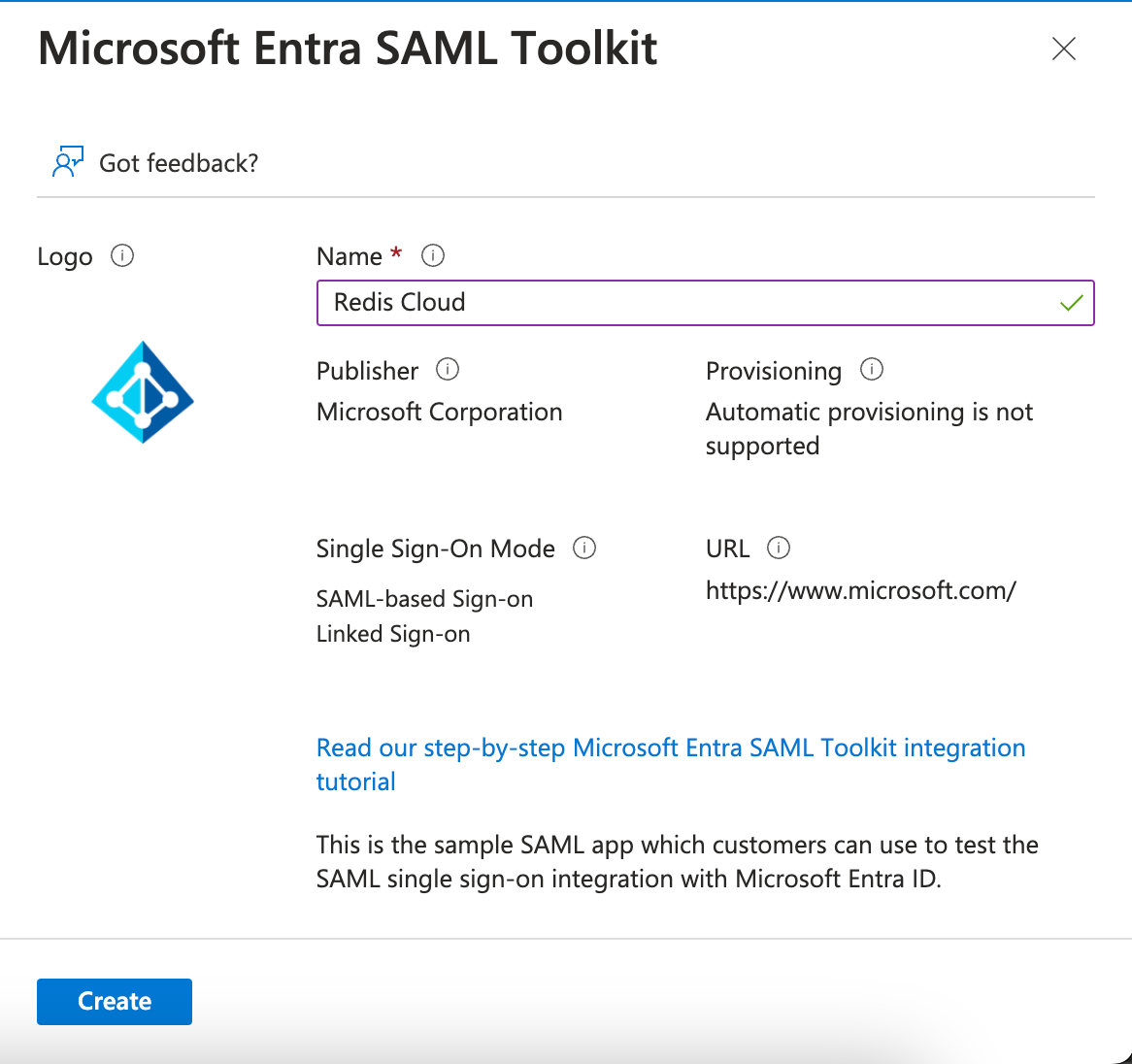
Name the application Redis Cloud and then select Create.
-
Select Properties and upload the Redis logo.
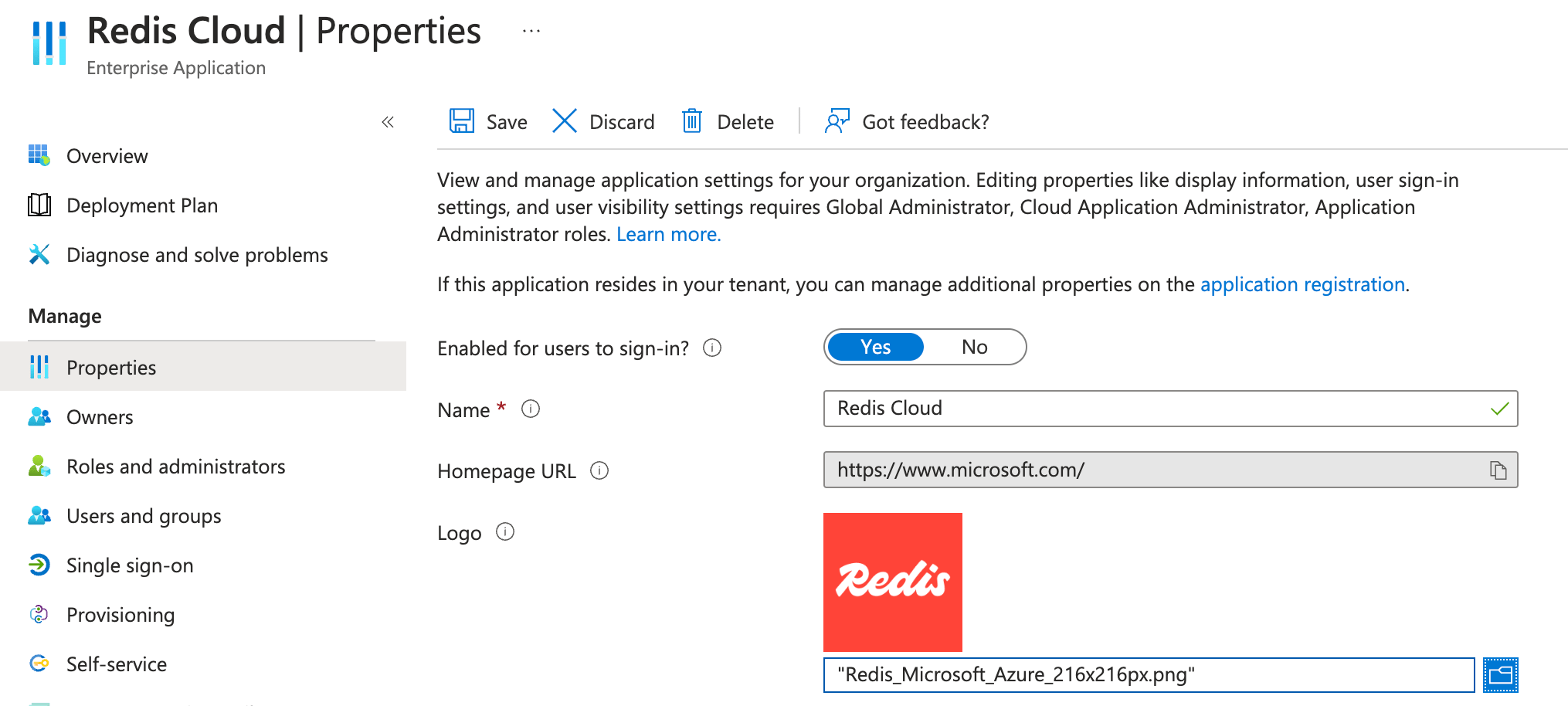
Select Save.
-
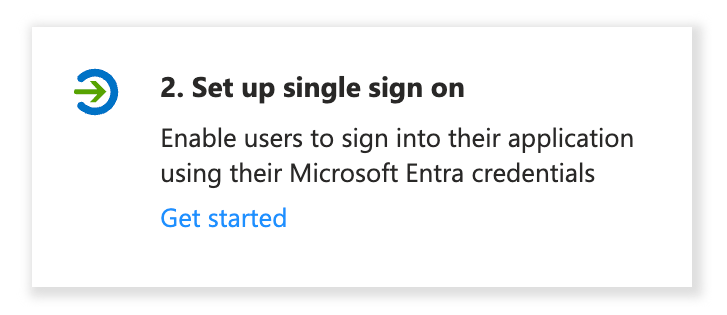
Once you've created the application, go to the Application Overview and select Set up single sign on.
-
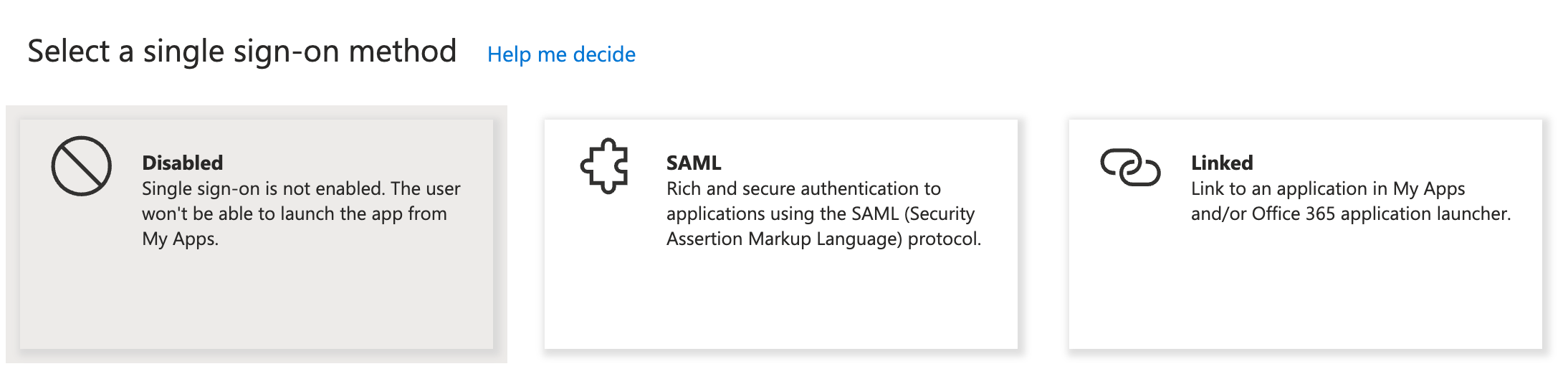
Select SAML as the single sign-on method.
-
Go to Step 1 in the configuration screen and select Edit.
Enter some mock data in the required fields.
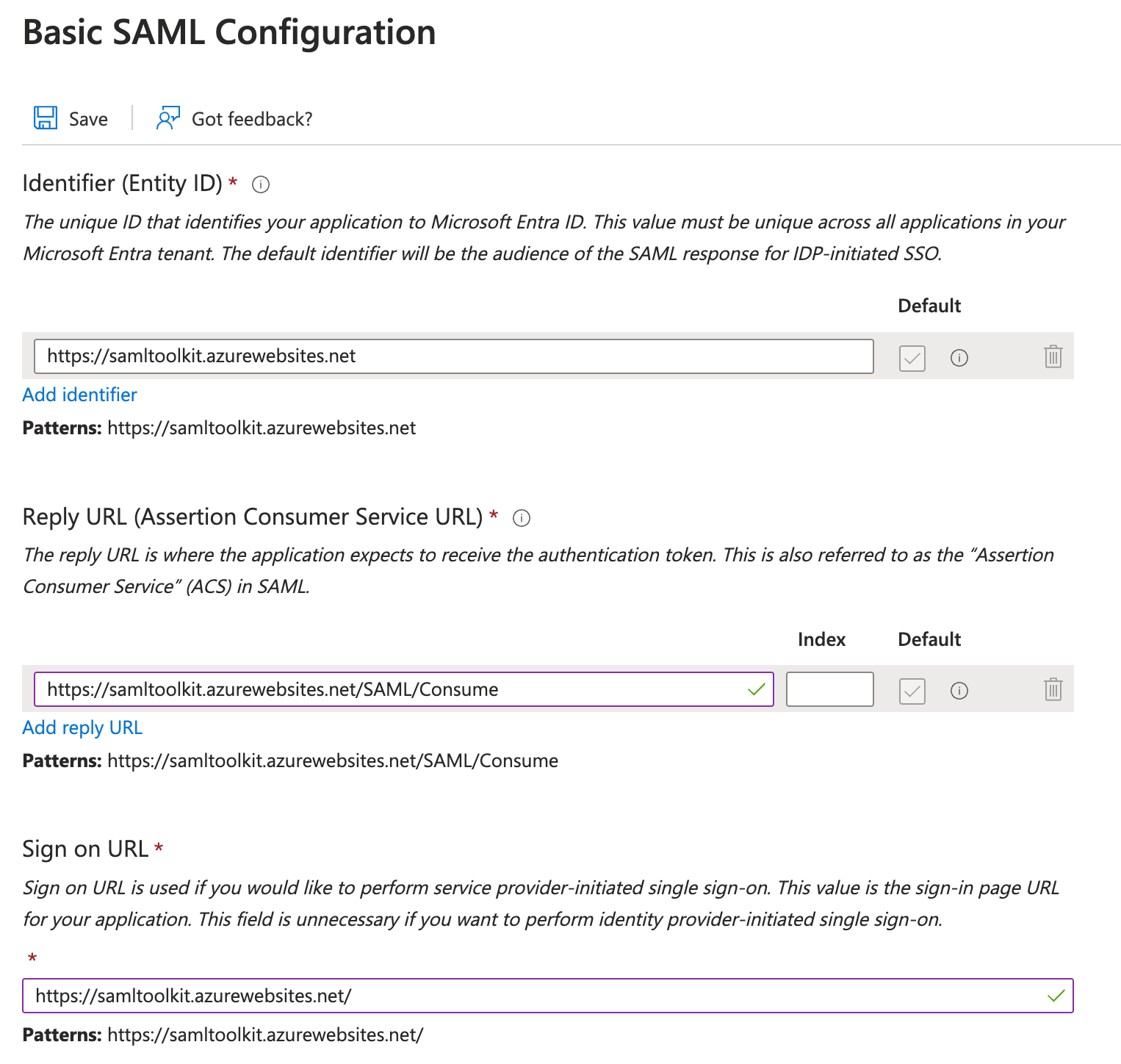
Select Save to save your changes.
-
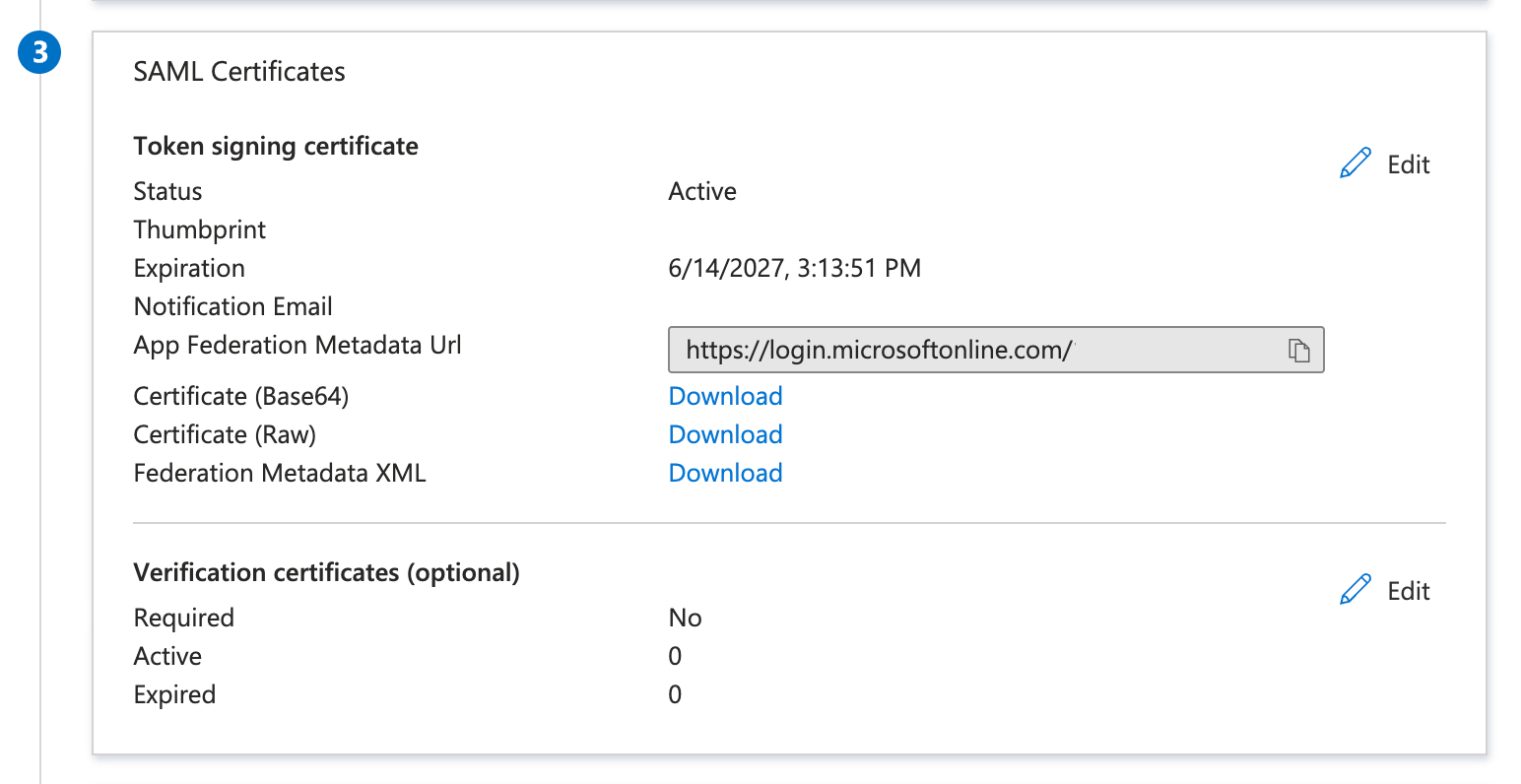
Go to Step 3 in the configuration screen.
-
Certificate (Base 64) is required to complete SAML configuration in the Redis Cloud console. Select Download to download it.
-
-
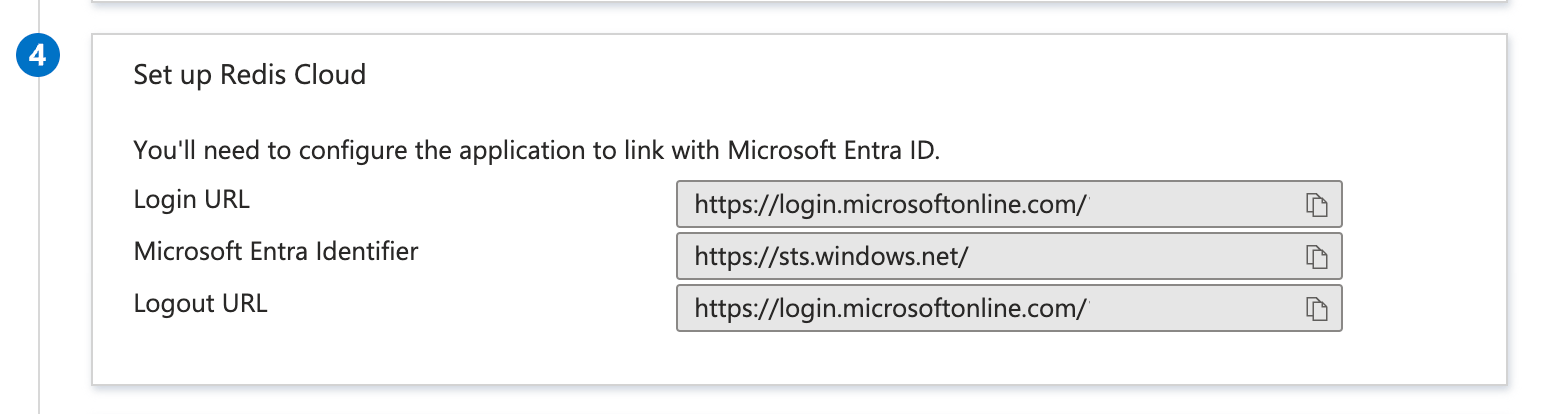
Go to Step 4 in the configuration screen, and note down or copy the following information:
- Login URL is used as the "IdP server URL" in the SAML configuration in admin console.
- Microsoft Entra Identifier is used as the "Issuer (IdP Entity ID)" in the SAML configuration in admin console.
Step 2: Configure SAML support in Redis Cloud
Now that you have your Entra IdP server ready, configure support for SAML in Redis Cloud.
Sign in to Redis Cloud
Sign in to your account on the Redis Cloud console.
Activate SAML in access management
To activate SAML, you must have a local user (or social sign-on user) with the owner role. If you have the correct permissions, you will see the Single Sign-On tab.
-
Fill in the information you saved previously in the setup form. This includes :
-
Issuer (IdP Entity ID): Microsoft Entra Identifier
-
IdP server URL: Login URL
-
Assertion signing certificate: Drag-and-drop the certificate file you downloaded to disk in the form text area
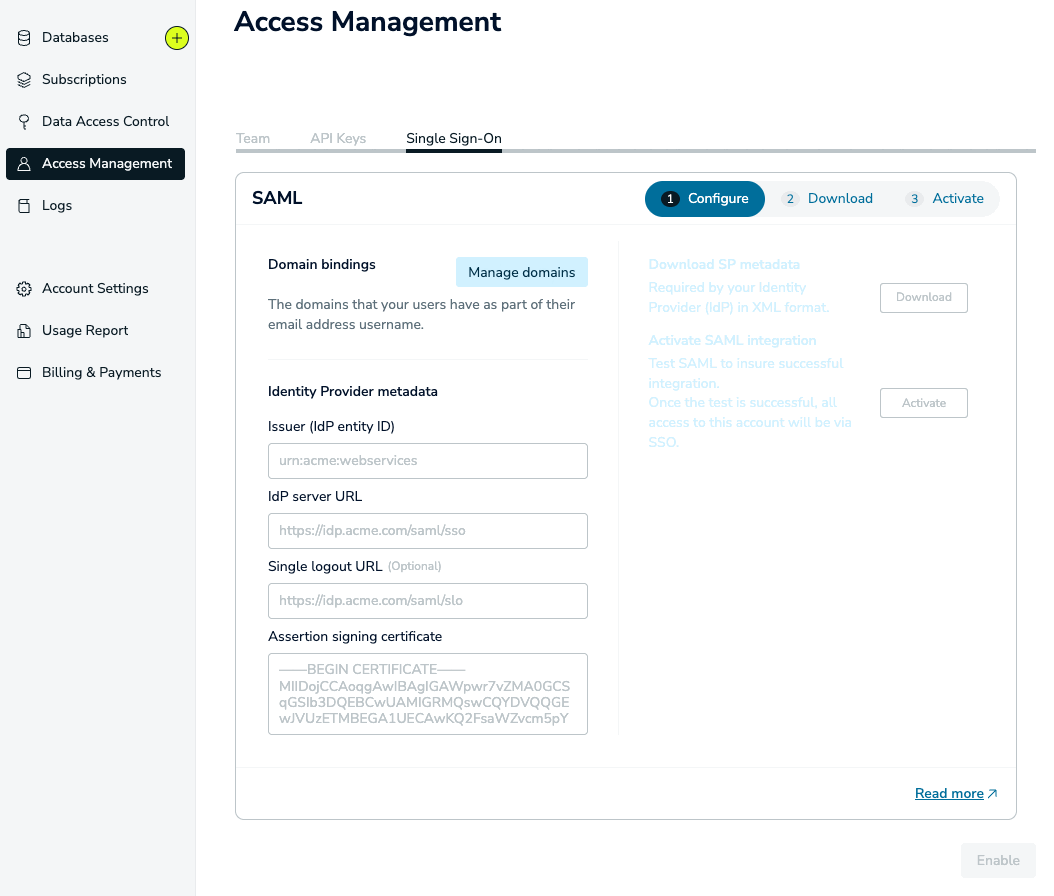
Once you click the Enable button, wait a few seconds for the status to change.
-
-
You will then be able to download the service provider (SP) metadata. Save the file to your local hard disk.

-
Open the file in any text editor. Save the following text from the metadata:
- EntityID: The unique name of the service provider (SP)

- Location: The location of the assertion consumer service

Step 3: Finish SAML configuration in Microsoft Entra ID
-
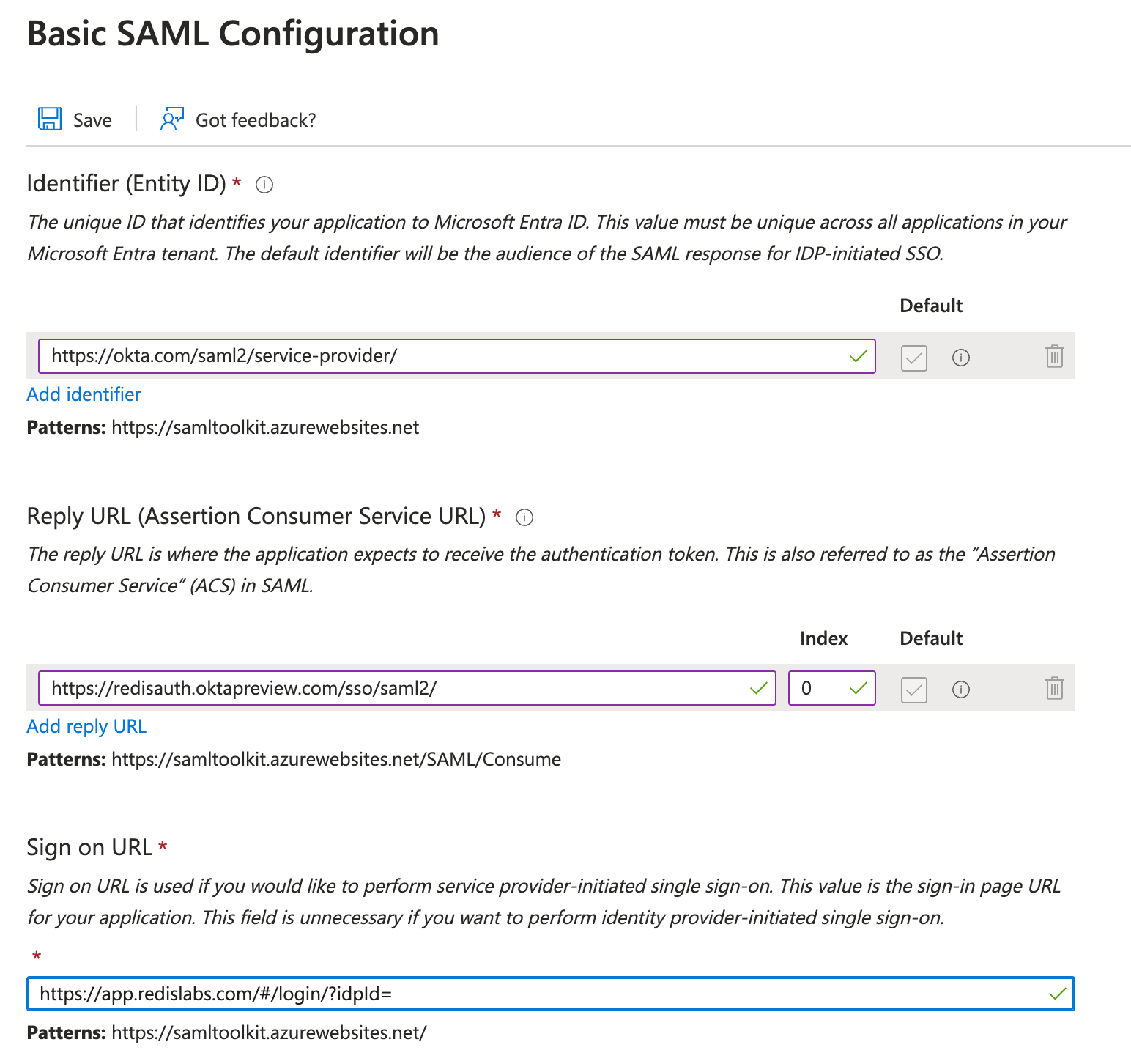
Go back to Microsoft Entra ID setup and Edit the Basic SAML Configuration in Step 1.
This is where you entered mock data. Let's now enter the correct data for this step.
Note:For the
EntityIDandLocationfields below you can directly upload the metadata file using the option at the top of the page. However, you will still need to manually add the Sign on URL.-
Paste
EntityIDinformation in theIdentifier (Entity ID)field. -
Paste
Locationlink inReply URL (Assertion Consumer Service URL)field. -
For the
Sign on URLfield, add URLhttps://cloud.redis.io/#/login/?idpId=where you need to add the ID from the Reply URL ID, for example,https://cloud.redis.io/#/login/?idpId=0oa5pwatz2JfpfCb91d7.
Select Save.
-
-
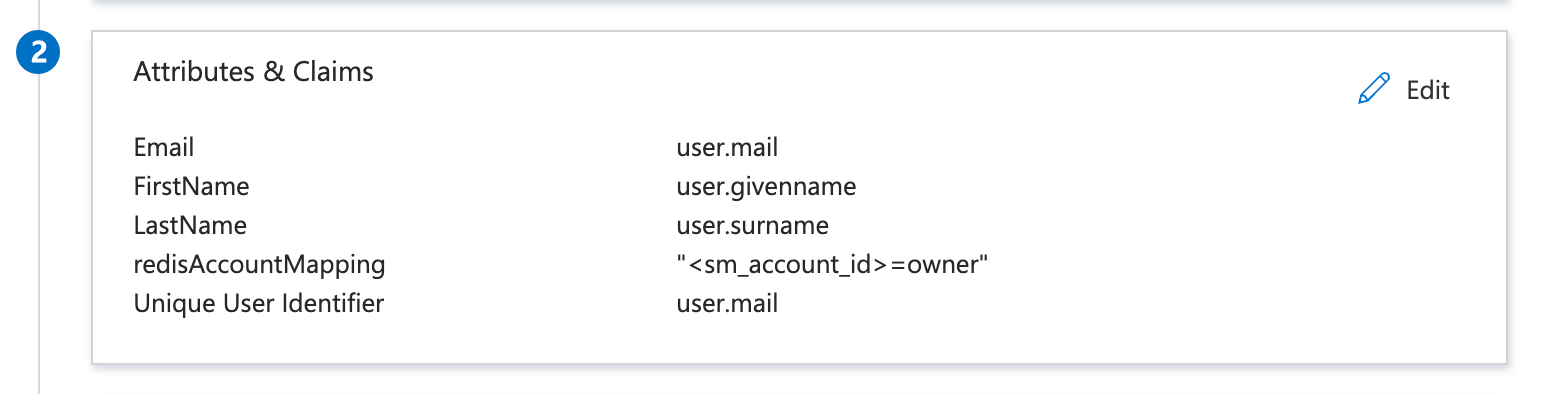
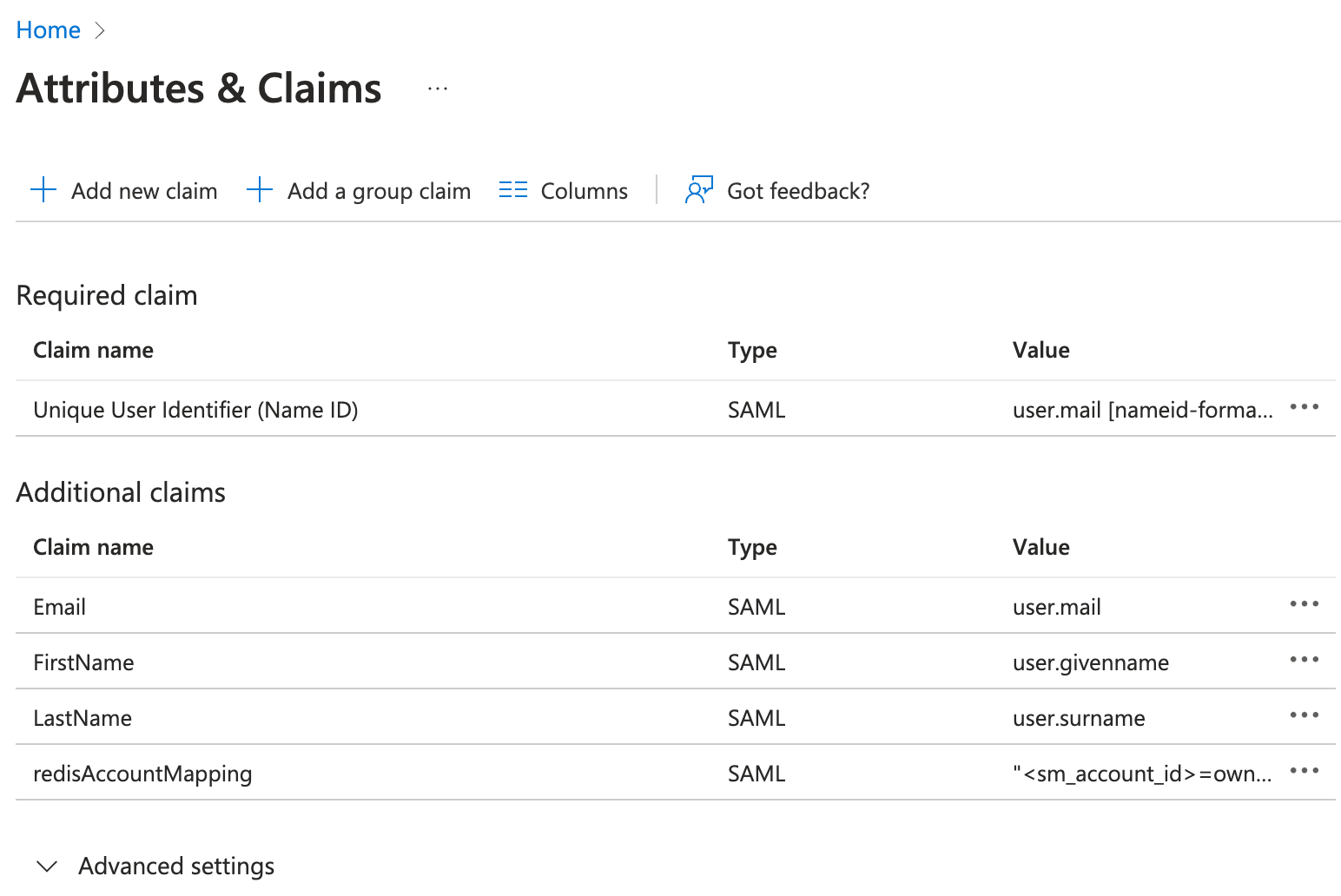
Go to step 2, Attributes & Claims and select Edit.
-
Configure these attributes and claims:
-
Modify Unique User Identifier (Name ID) to user.mail
-
Modify additional claims to match SAML assertion as follows:
-
Email: user.mail
-
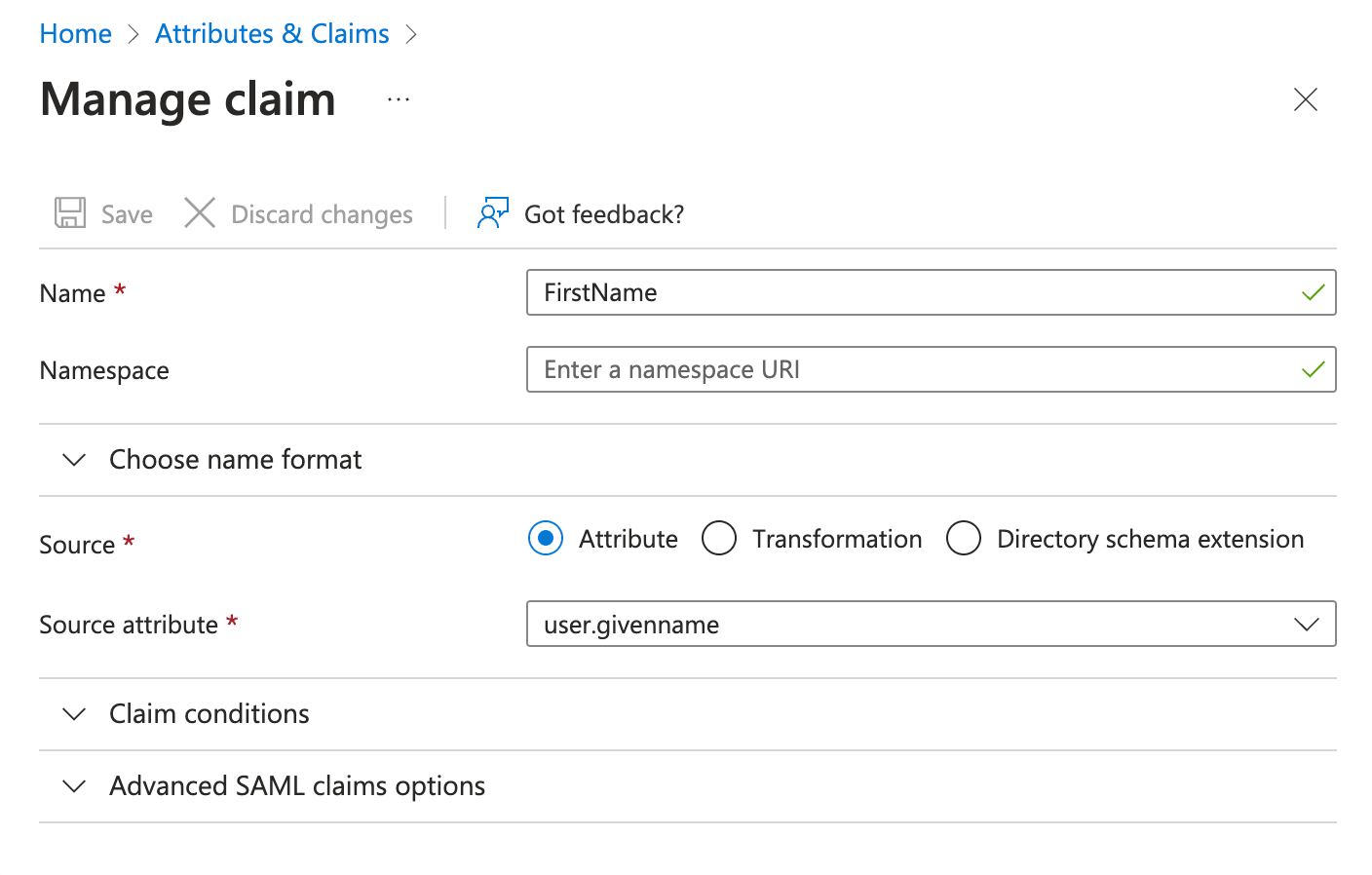
FirstName: user.givenname
-
LastName: user.surname
-
redisAccountMapping:
<sm_account_id>=ownerThe
redisAccountMappingclaim maps Redis Cloud accounts to the role each user receives. Its value is a comma-separated list ofaccountId=rolepairs, for example2613034=owner,2923247=member.accountIdmust be the numeric Redis Cloud Account ID found in your account settings. Non-numeric values are silently skipped.rolemust be lowercase and one ofowner,member,manager,billing_admin, orviewer. Note the underscore inbilling_admin.- Redis Cloud reads a single value for this claim. If it resolves to multiple values, only one is used — see Claim conditions and user groups.
Note:Make sure the Namespace field is empty when modifying these claims.
-
-
-
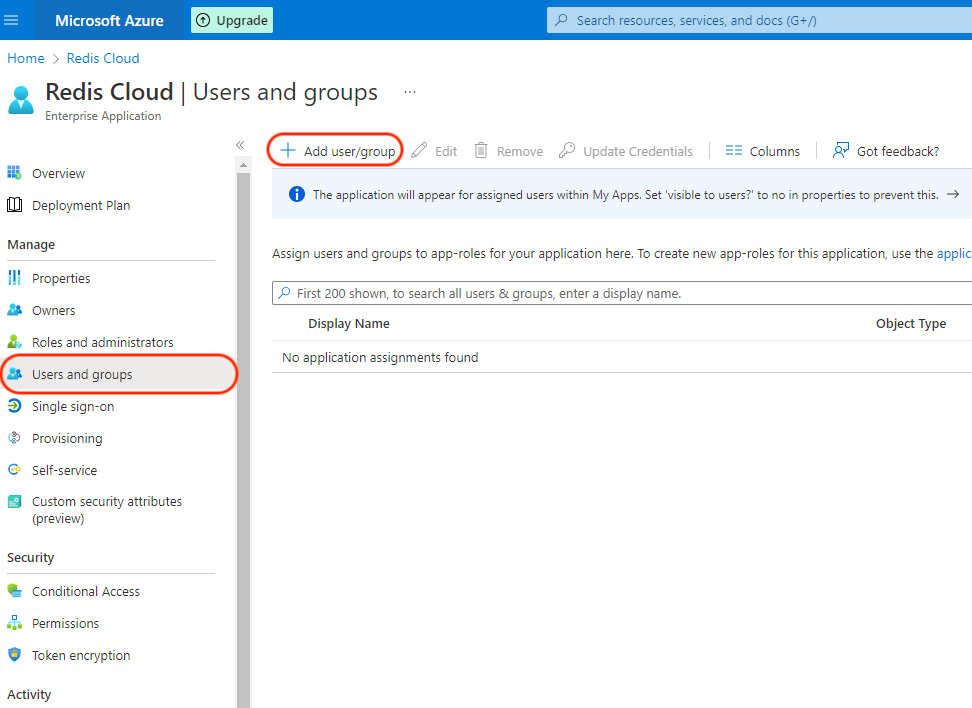
To add a user to the application, select User and Groups > Add user/group.
-
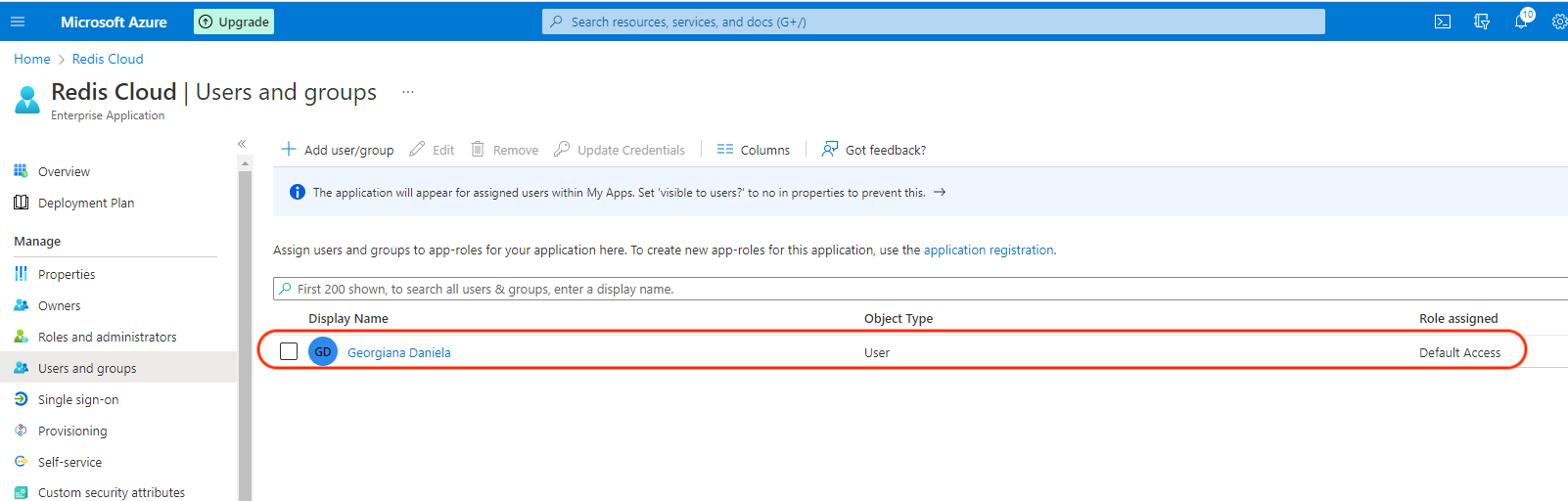
Add the user and select Assign.
Step 4: Return to Redis Cloud console
-
Return to Redis Cloud console and select Activate.

-
A popup appears, explaining that you must log in with the credentials of a Microsoft Entra user to test the SAML connection. Select Continue to go to the Microsoft login screen.
-
The Microsoft login screen will appear. Enter the credentials and click Sign In.
If everything is configured correctly, you will see the the Redis Cloud console screen. Your local account is now considered a SAML account.
To log in to the Redis Cloud console from now on, click on Sign in with SSO.

Claim conditions and user groups
The simple redisAccountMapping value shown above gives every user assigned to the application the same role. If different users need different roles, or you prefer to manage roles with directory groups, you can build the claim value from each user's group membership instead.
However you build it, Redis Cloud reads redisAccountMapping as a single string of comma-separated accountId=role pairs, so the emitted value must resolve to clean accountId=role pairs using the same format described in Step 3.
Map roles from directory groups (regex replace)
Microsoft Entra can build the claim value from the names of the groups a user belongs to, using Apply a regex replace to groups claim content.
-
Create one directory group per role, using a
redis-<role>naming convention:redis-ownerredis-memberredis-managerredis-billing_admin— note the underscore, so the group name matches thebilling_adminrole token exactlyredis-viewer
-
On the
redisAccountMappingclaim, set the source to Attribute, choose the groups attribute, and enable Apply a regex replace to groups claim content. -
Set the regex and replacement patterns:
- Regex pattern:
^redis-(?<role>owner|member|manager|billing_admin|viewer)$ - Replacement pattern:
<accountId>={role}— replace<accountId>with your numeric Redis Cloud Account ID. To map more than one account, comma-join the pairs, for example2613034={role},2923247={role}.
Warning:The substitution token is
{role}— curly braces only. Do not write${role}. Entra emits the$as a literal character, producing a value like2613034=$owner, which Redis Cloud rejects withsaml-config-invalid-account-mappingbecause$owneris not a valid role token. - Regex pattern:
-
Make sure Emit groups as role claims is turned off. When it is on, the value is emitted under the
http://schemas.microsoft.com/ws/2008/06/identity/claims/roleclaim type instead of your customredisAccountMappingclaim name, so Redis Cloud never receives the mapping.
Set the group claim Source attribute to the group name, not Group ID. If the source is Group ID, the emitted value is a GUID that never matches the redis-<role> regex. For groups synced from on-premises Active Directory, use sAMAccountName; for cloud-only groups, enable the group-name option.
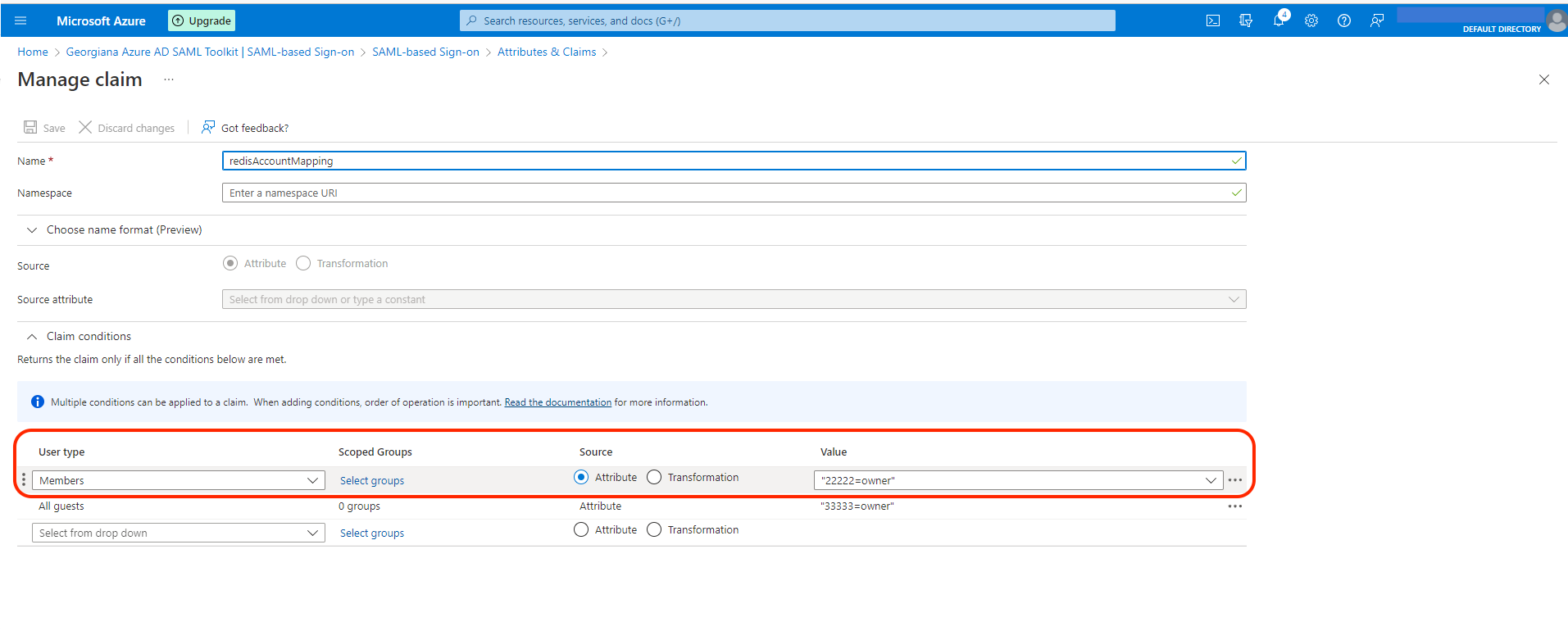
Users in multiple groups
The group-claim regex emits one value per matching group, so a user who belongs to more than one redis-<role> group produces a multi-valued claim.
This does not fail login, but because Redis Cloud reads only a single value, the broker forwards one of the values (typically the first). The user then resolves to a single group's role rather than a combination, which makes the effective role unpredictable.
- Assign each user to a single
redis-<role>group per account set, so the resulting role is deterministic. - If users need different roles in different accounts, do not build the value from groups. Instead, store the full
accountId=role,...string in a per-user directory or extension attribute and emit that attribute directly, with no regex. This always produces a single value.
Troubleshooting
saml-config-invalid-account-mapping
This error means the redisAccountMapping claim reached Redis Cloud, but no valid accountId=role pair could be parsed from its value. Check the emitted value for:
- Stray characters — most often a literal
$from writing${role}instead of{role}in the regex replacement pattern, which producesaccountId=$owner. - A wrong role token — the role must be exactly
owner,member,manager,billing_admin, orviewer, in lowercase. Values likeOwnerorbilling-admin(hyphen) are rejected. - A non-numeric account ID —
accountIdmust be the numeric Redis Cloud Account ID from account settings.
Multi-group membership (a multi-valued claim) does not cause this error. Login succeeds, but the user resolves to a single group's role — see Users in multiple groups.
Verify the emitted claim
To confirm the claim value before users sign in:
- Use Entra's Test this application on the SAML-based sign-on screen, or
- Capture the SAML assertion during login — with a tool such as SAML-tracer, or a HAR capture taken with Preserve log enabled from the start of the login flow.
Confirm that redisAccountMapping contains clean accountId=role pairs, with no $ or other stray characters and no duplicate account IDs.
IdP initiated SSO
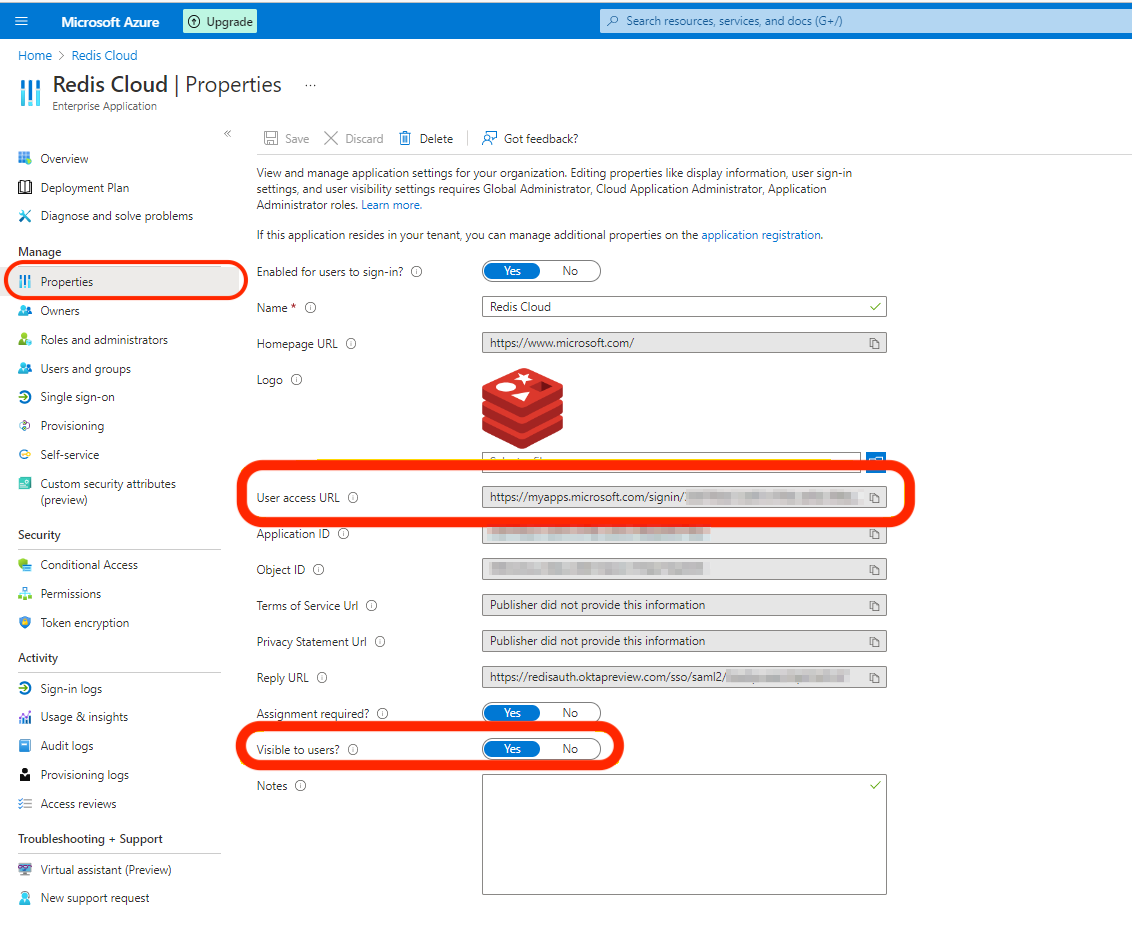
If you correctly set the up the Sign on URL, the SAML application appears by default on the user's My Apps panel.
While assigning the user to the app, a notification will appear:
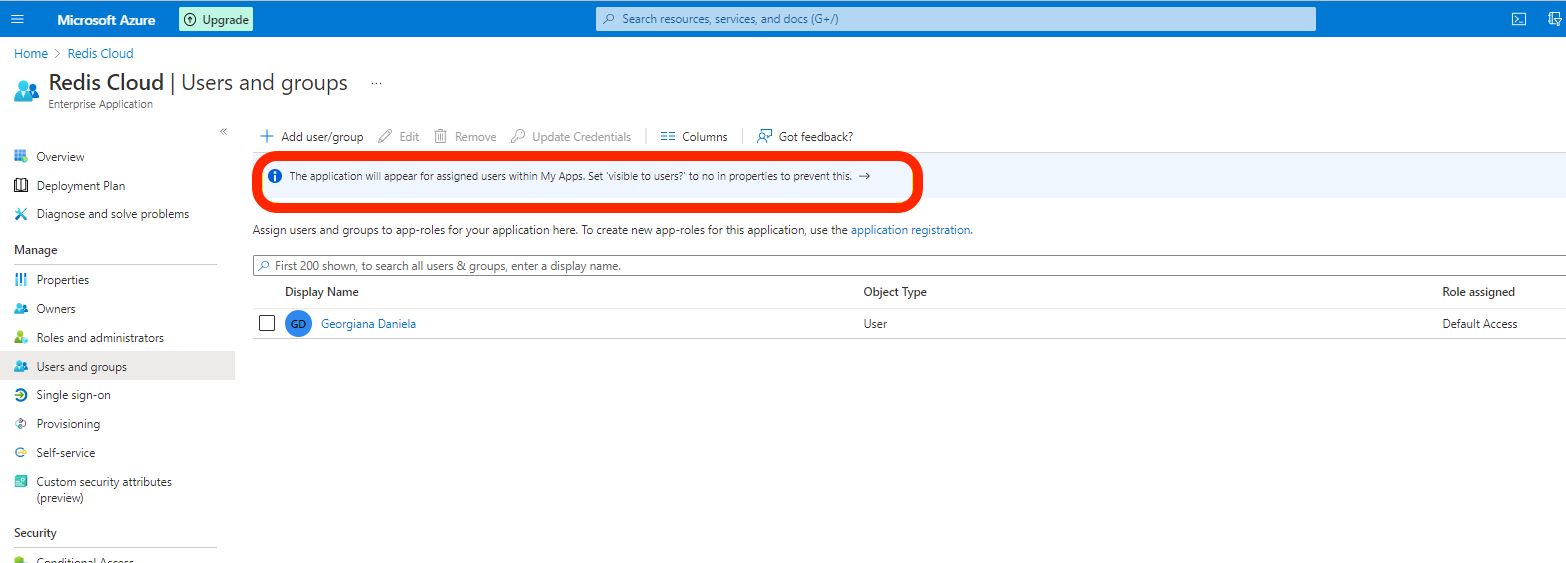
Therefore, if you sign into https://myapplications.microsoft.com/, the application will be available.
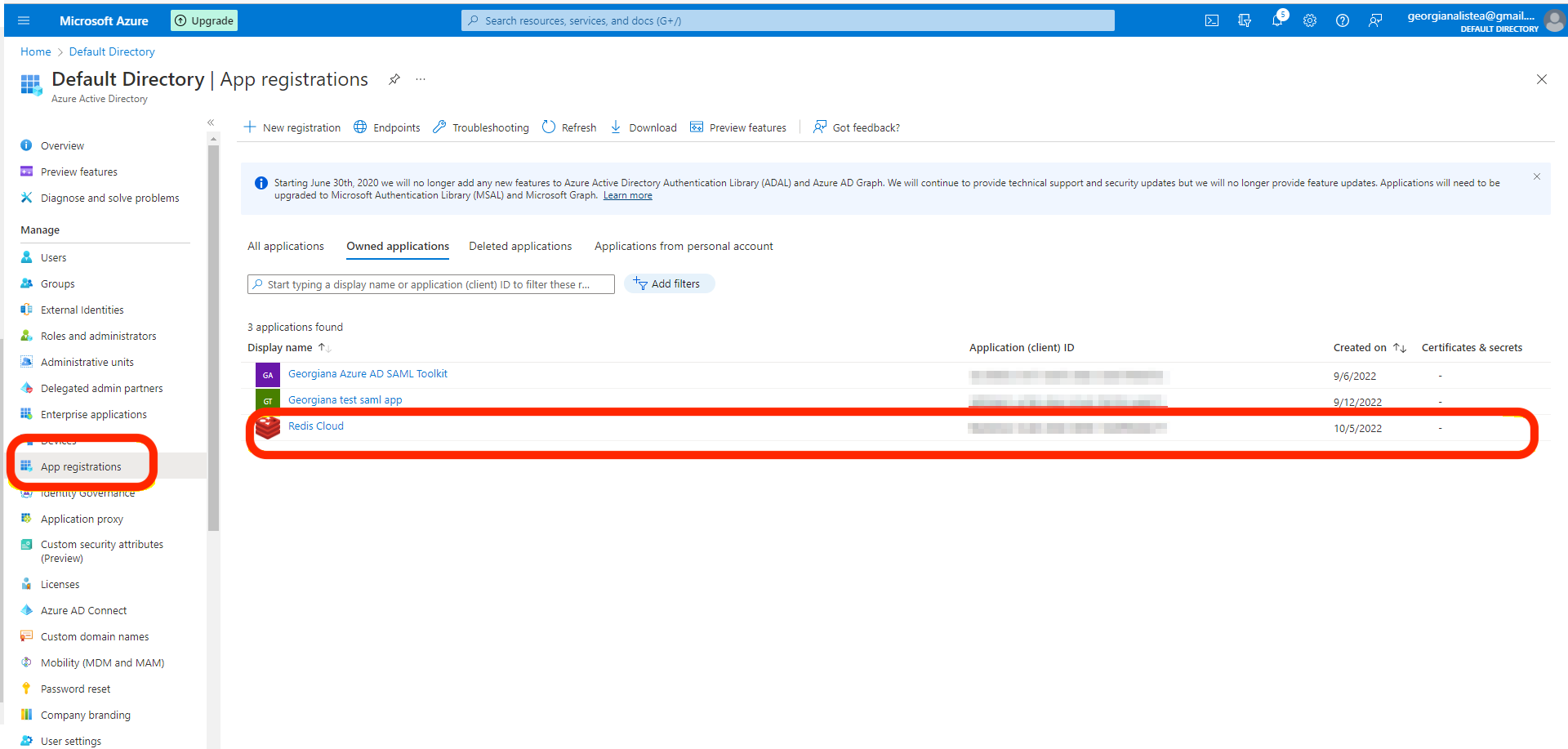
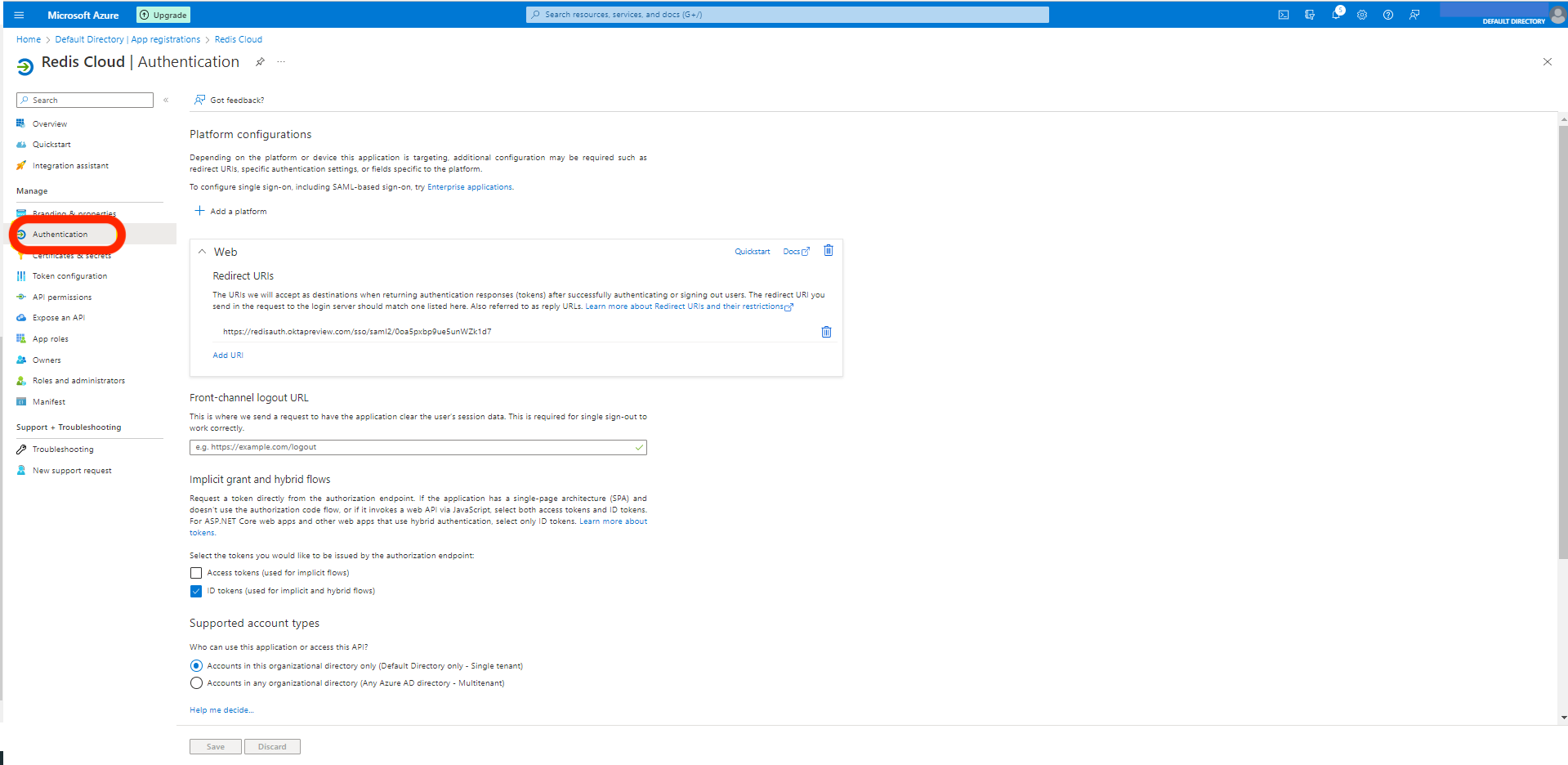
If the app is not available, make sure that the App is registered. It should be done automatically.
You can also access the app directly by using the User access Url from App Properties.